May 17, 2026
How to Organize Workout Videos: A Complete System for Busy Fitness Fans
May 17, 2026
How to Organize Workout Videos: A Complete System for Busy Fitness Fans
May 17, 2026
How to Organize Workout Videos: A Complete System for Busy Fitness Fans
A phone stuffed with saved reels and a half-finished TikTok “challenge” folder won't build a consistent routine—only a plan will. For fitness-minded users who want to organize workout videos into usable, distraction-free routines, a clear system turns chaos into progress. This guide lays out practical, step-by-step methods for collecting, labeling, categorizing, and scheduling workout clips so they actually get used—and tracked—whether training at home or in the gym.
Why Organizing Workout Videos Matters
Many fitness enthusiasts spend hours discovering great workouts on Instagram and TikTok, then never follow through because their finds live in a digital Bermuda Triangle: saved, but inaccessible when it matters. Organizing workout videos changes that by:
Making workouts actionable: Saved clips become complete sessions when grouped and sequenced.
Saving time at the gym: Pre-built playlists eliminate scrolling between sets.
Improving consistency: Structured plans encourage adherence and progression.
Enabling tracking: Tagging and versioning let users measure improvements over weeks and months.
For the social-media-native generation—18–35, mobile-first—this is less about digital minimalism and more about translating inspiration into measurable fitness outcomes.
Common Problems People Face When They Don’t Organize
Endless rewatching without actually doing the workout.
Saved videos that don’t include key details (tempo, sets, rest), making them hard to replicate.
Repeating similar workouts unknowingly because there’s no tagging or categorization.
Losing progress metrics because workouts aren’t linked to tracking tools.
Core Principles for Organizing Workout Videos
Before diving into tools and tactics, a few guiding principles set the stage:
Actionability: Every saved clip should answer “What should I do now?”
Simplicity: Systems should take less time to use than they save.
Findability: Metadata (tags, names) must make retrieval instant.
Repeatability: Workouts should be reusable and adaptable for progress tracking.
Step-by-Step Workflow to Organize Workout Videos
The following workflow converts scattered clips into a functioning library and weekly plan. It works whether the videos are personal recordings or social-media finds.
1. Capture and Collect
First, consolidate every workout clip into one accessible location. Options include cloud storage (Google Drive, Dropbox), a dedicated app, or a local folder that syncs with a cloud service.
Social media saves: Use tools that preserve the original video and caption. For Instagram Reels and TikTok, either use the platform’s save features or a dedicated downloader. Some apps, like Fitsaver App, convert saved Instagram/TikTok workouts directly into actionable routine entries, extracting key details when available.
Personal recordings: Export workout clips from the phone’s camera app into the master folder immediately after recording.
2. Standardize Names and Add Metadata
Good filenames and metadata make retrieval fast. Adopt a consistent naming convention and stick to it.
Example filename format:
2026-05-14_LegDay_BulgarianSplitSquat_3x8_IGReel.mp4
Date: ISO format (YYYY-MM-DD) so files sort chronologically.
Session Tag: LegDay, Upper, HIIT, Mobility, etc.
Exercise Name: Short, descriptive (BulgarianSplitSquat).
Sets x Reps or Time: 3x8, 45s, AMRAP10, etc.
Source: IGReel, TikTok, Phone, TrainerName.
Beyond filenames, use tags and descriptions inside the chosen platform:
Primary tags: Strength, Hypertrophy, Endurance, Mobility, Warm-Up, Cooldown.
Secondary tags: Equipment (Dumbbells, Kettlebell, Bands), Intensity (Beginner, Moderate, Hard), Muscle group (Quads, Glutes, Chest).
Notes field: Add tempo, rest intervals, variations, or common mistakes seen in the clip.
3. Categorize Into Playlists and Templates
After tagging, group clips into playlists or templates that reflect real workout sessions. Playlists are sequences used in one training session. Templates are repeatable frameworks (e.g., “Lower Body Strength 45 min”) that swap in new clips as needed.
Example playlist for a 45-minute leg workout:
Warm-up mobility (3 clips): hip circles, banded glute bridges, bodyweight squats
Compound strength (2 clips): barbell back squats 4x6, Romanian deadlifts 3x8
Accessory work (2 clips): walking lunges 3x12, Bulgarian split squats 3x8
Finisher (1 clip): 10-minute EMOM jump squats
Cooldown (1 clip): hamstring stretch, foam roll
Playlists can be named by length and goal: LegDay_45_Strength, Upper_30_HIIT, Mobility_15_PreRun.
4. Convert Clips into Structured Routines
Raw clips often lack a workout structure. Converting them into routines means adding sets, reps, rest periods, and progression rules. This is where organization becomes truly valuable: a saved reel becomes a routine that can be repeated and tracked.
Assign each clip an instruction: sets x reps or time, tempo, rest.
Create progression rules: when to increase load, reps, or difficulty.
Link to related clips for regressions or harder variations.
Apps that specialize in this—like Fitsaver—automatically extract metadata from social clips where possible, and allow users to add missing details to make the routine actionable.
5. Schedule and Sync with the Calendar
Once routines exist, they need to be put on a calendar. This eliminates decision fatigue and increases adherence. Weekly scheduling can be done inside fitness apps, calendar apps (Google Calendar), or productivity tools (Notion, Airtable).
Assign workouts to specific days and times; keep them realistic for users’ routines.
Block time and add a reminder 30 minutes before training.
Include a short description or direct link to the playlist so access is one tap away.
6. Track Progress and Iterate
Organizing isn’t complete without tracking. Users should record weights, reps, sets, and notes after each session. Tracking reveals trends—stalled lifts, improved endurance—and feeds into smarter planning.
Use a built-in tracker in the app or a simple spreadsheet/Notion page.
Tag completed workouts and note subjective measures: RPE, energy, sleep quality.
Review weekly and adjust intensity, volume, or exercise selection.
How to Organize Workout Videos Found on Instagram and TikTok
Social media is the main discovery source for many. Converting viral clips into safe, usable training elements requires care.
Save the Source Correctly
If an app allows direct saving to a workout organizer, use it—metadata and captions are often preserved.
If downloading from the platform, save both the video and the caption (or copy text into the notes field).
Verify Credibility and Safety
Not every influencer is coaching. Before adding a clip to a routine:
Check the coach’s credentials and other content for consistency.
Look for red flags: poor form, exaggerated ranges of motion, lack of progressions.
Mark risky clips as “advanced” or add regression alternatives to the playlist.
Extract the Workout Details
Often the caption contains sets, reps, or tempo. If not, watch closely and estimate, then add a safety margin for novices. If uncertain, tag the video as demo only until verified.
File and Folder Structure Examples
Clear folder structure keeps the video library scalable. Here are two practical approaches depending on how granular users want to get.
Simple Structure
Main Folder:
WorkoutsSubfolders:
Strength,Cardio,Mobility,WarmupsInside each: Playlists as subfolders or tagged files
Advanced Structure (Tag + Folder Hybrid)
Main Folder:
WorkoutsSubfolder by Year:
2026Inside Year: Subfolders for Goals (
Hypertrophy,Cutting,Strength)All videos live in a master folder and are also referenced in playlists via links or an app database
This hybrid approach uses tags to cross-reference videos without duplicating files.
Tagging Taxonomy: Examples and Best Practices
Tagging is the backbone of findability. Use a limited but consistent set of tags to avoid chaos.
Modality: Strength, HIIT, Yoga, Mobility
Duration: 10, 20, 30, 45, 60
Equipment: Bodyweight, Dumbbells, Barbell, Kettlebell, Bands
Focus: Glutes, Chest, Shoulders, Core, PosteriorChain
Intensity: Beginner, Intermediate, Advanced
Limit the total number of tags to around 30 for practical use. Too many tags defeat the purpose.
Apps and Tools to Organize Workout Videos
Choosing the right tool depends on whether users want a DIY file system or a purpose-built fitness organizer.
Purpose-Built Fitness Organizer: Fitsaver App
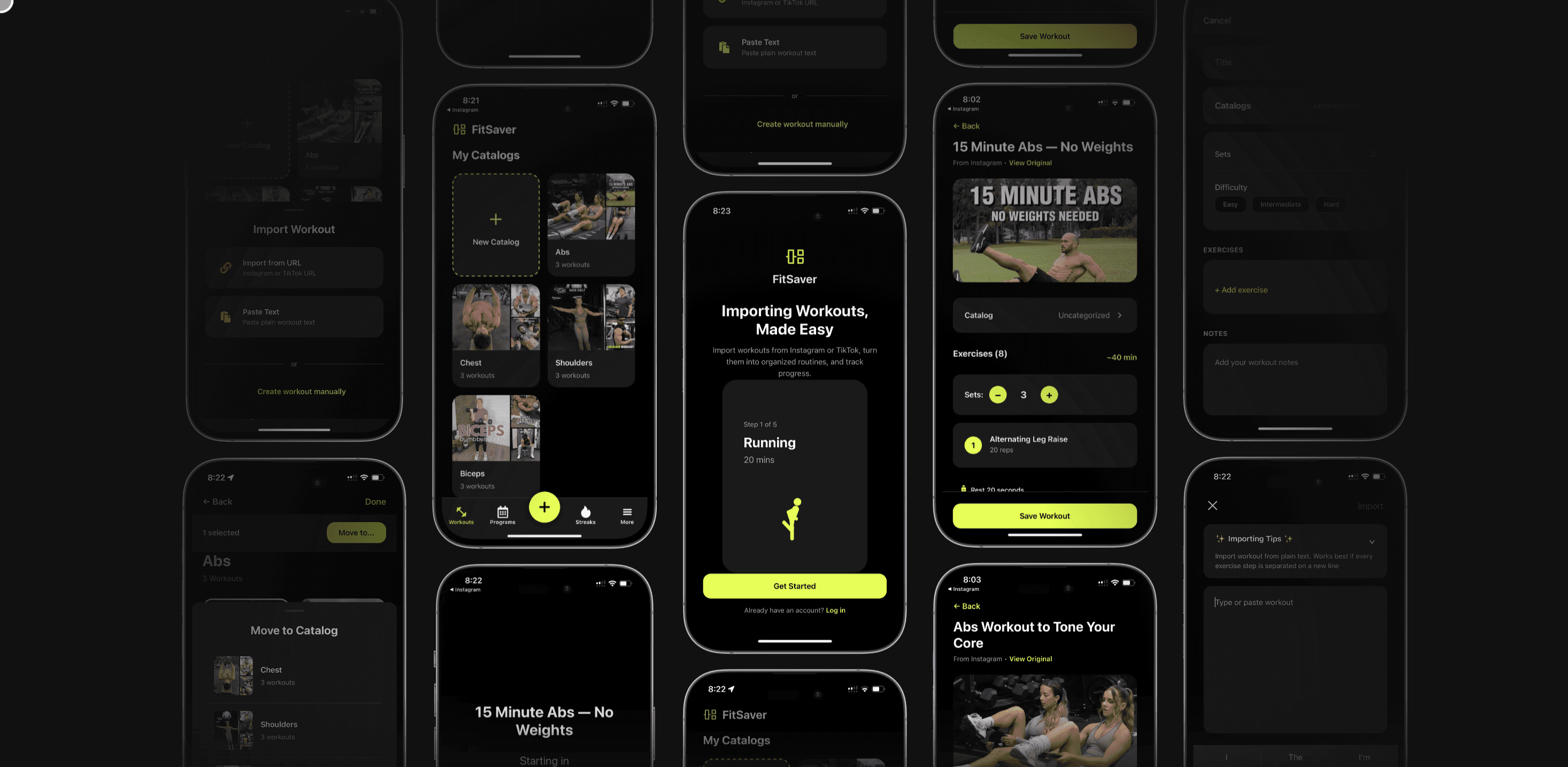
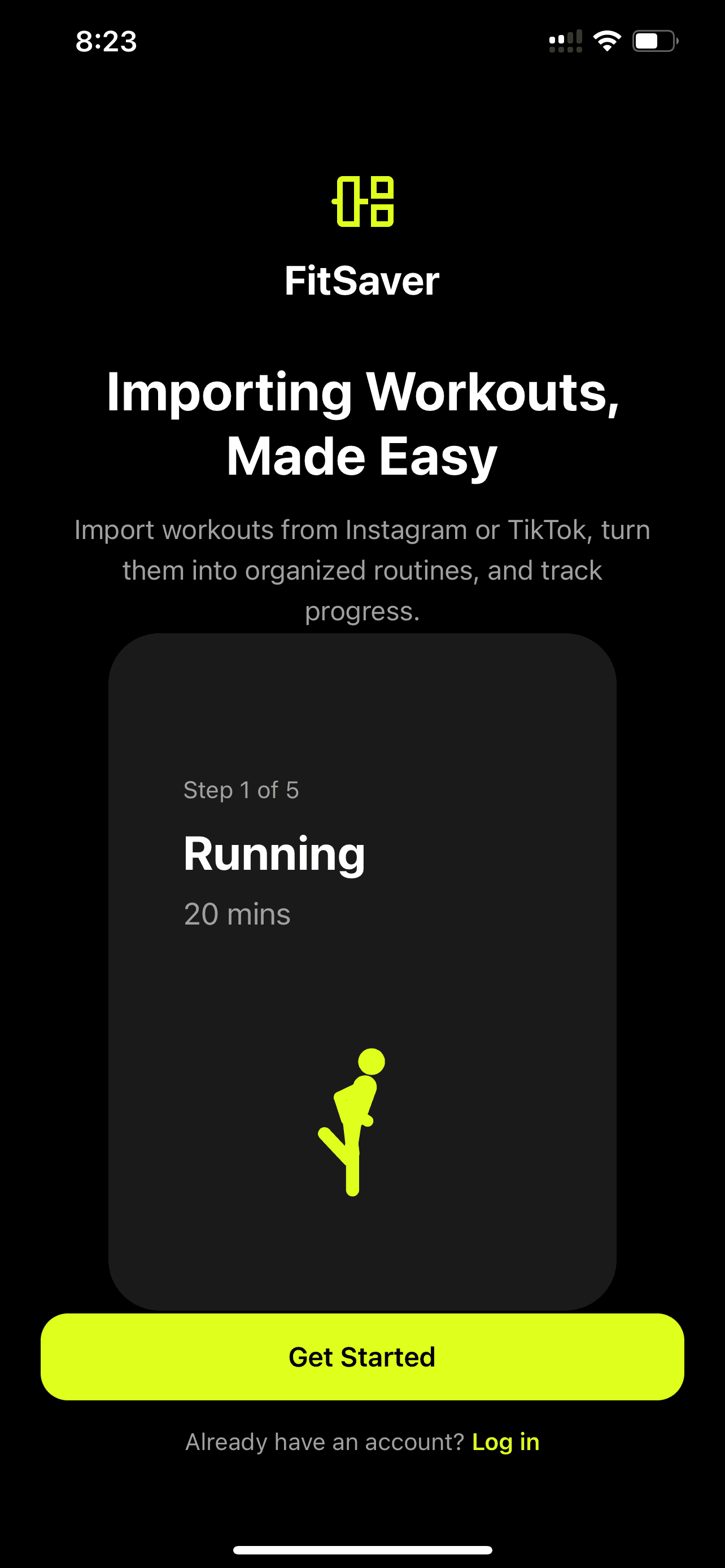
Fitsaver App converts Instagram and TikTok workout videos into structured routines that are ready to schedule and track. It extracts metadata, allows quick tagging, and builds playlists users can follow in the gym or at home—eliminating the need to manually add sets, reps, and rest. For busy, social-media-savvy users, Fitsaver streamlines discovery-to-action in one place.
General Tools That Pair Well
Google Drive or Dropbox: Reliable cloud storage and easy sharing. Good for backing up original files.
Notion or Airtable: Powerful for building a database of videos with custom fields and views. Great for tracking progress and creating dashboards.
HandBrake: Free tool to compress or reformat videos for faster playback and lower storage use.
VLC Media Player: Useful for trimming and playing clips at different speeds for technique review.
Calendar Apps: Google Calendar or iCal for scheduling sessions with direct links to playlists.
How to Convert Short Clips into Full Sessions
Short-form content usually needs scaffolding. Turning it into a session involves sequencing, timing, and scaling.
Sequencing Principles
Warm-up first, then compound lifts, then accessory, then a finisher, then cooldown.
Alternate high-skill or heavy lifts with lower-intensity, corrective exercises.
Group exercises by movement pattern when possible (push/pull/hinge/squat).
Timing and Rest Guidelines
Strength (heavy): 2–5 minutes rest between sets.
Hypertrophy (moderate): 60–90 seconds rest.
Endurance/HIIT: Short bursts with structured work-to-rest ratios (e.g., 40:20).
Adjust for Short Clips
If a clip shows a single exercise, create a mini-circuit by adding related moves from the library. For example, a 30-second kettlebell swing video becomes a 12-minute EMOM or a 3-round circuit with goblet squats and plank holds.
Tracking, Progression, and Analytics
Organization becomes powerful when paired with tracking. Metrics tell which routines are working and which ones need change.
Track objective measures: weight lifted, reps completed, workout duration.
Track subjective measures: RPE (Rate of Perceived Exertion), sleep, stress, soreness.
Use tags like
PRorPlateauto flag noteworthy sessions.Review monthly: increase load when users can complete target reps in two consecutive sessions.
Apps that sync video playlists with logging make this effortless. Fitsaver’s routines integrate with logging features so users can mark sets as complete, record weights, and see progression over time.
Sharing and Collaboration
Organized libraries become valuable resources to share with friends, training partners, or a coach.
Create shared playlists for partner workouts or challenges.
Use cloud folders with view-only links for coaches to review form and plan adjustments.
Maintain version control: when updating a playlist, note changes in the description so collaborators see what’s new.
Privacy, Copyright, and Ethical Considerations
When organizing social media content, users should respect creators and privacy:
Credit the original creator when sharing publicly.
Request permission if using clips for commercial purposes or reposting outside private groups.
Avoid altering videos in a way that misrepresents the trainer’s technique or intent.
Maintenance Routines: Weekly, Monthly, Quarterly
Like any system, a video library needs maintenance. Establish a simple cadence:
Weekly (10 minutes): Add new finds, tag new clips, update scheduled workouts.
Monthly (20–30 minutes): Review progress, retire obsolete clips, create two new playlists.
Quarterly (1 hour): Reassess goals, archive old files, backup the library to a separate storage.
Small, regular habits keep the system lightweight and useful. If maintenance becomes a chore, the system will fail—so keep it efficient.
Device-Specific Tips
On a Phone
Use a single workout organizer app for capture and playback to minimize switching between apps.
Create home-screen shortcuts to favorite playlists for one-tap access.
Enable offline access for gym settings with spotty Wi-Fi.
On a Desktop
Batch-rename files with automation tools (Bulk Rename Utility, macOS Automator).
Use Notion or Airtable for richer database views, linking to cloud-hosted videos.
Back up the master library to an external drive and a cloud service.
Example: Building a 4-Week Program From Saved Clips
Here’s a condensed example of turning a saved clip collection into a usable 4-week strength program.
Step 1: Create Core Templates
Upper Body Strength 45 (Compound day + Accessories)
Lower Body Strength 45
Push/ Pull Hypertrophy 30
Active Recovery / Mobility 20
Step 2: Populate With Clips
Assign one heavy compound clip per main lift (e.g., barbell bench press, back squat).
Add two accessory clips per session from the tag pool (triceps dips, face pulls, hamstring curls).
Insert a mobility clip as a warm-up or cooldown.
Step 3: Set Progression Rules
Week 1: Establish baseline. Use challenging but manageable loads—3 sets of 6–8 on compounds.
Week 2: Increase load by 2.5–5% if all sets complete with good form.
Week 3: Add 1–2 reps per set or an extra set on accessories.
Week 4: Deload (reduce load or volume by ~30%).
Using an app that links video clips to each exercise makes the program easy to follow; users simply tap a routine, watch the demo clip, and log the set.
Troubleshooting Common Issues
Clips Lack Clear Instructions
Tag them DemoOnly and add a short written instruction: sets, reps, tempo. If unsure, add a safer regression option.
Too Many Similar Clips
Cull clips that add little variety. Keep the best demos per exercise and archive the rest.
Playlists Are Too Long or Short
Test playlists in real time. A good rule: a gym session should be 30–75 minutes. Adjust the number of accessory exercises or set durations to match.
Real User Scenario: The Busy College Student
A college student with an unpredictable schedule wants to use saved TikTok workouts without scrolling for 30 minutes between classes. They:
Install a dedicated organizer and connect saved reel imports.
Create three templates: Quick Strength 30, Full Push 45, Mobility 15.
Organize clips into the templates and schedule Quick Strength sessions on commute-free mornings.
Use tags like
DormFriendlyandNoEquipmentfor convenience.
Within two weeks, workouts shift from sporadic inspiration to consistent habit because access and scheduling become frictionless.
Final Checklist: Organize Workout Videos Efficiently
Centralize all clips in one searchable place.
Use a consistent filename and tag system.
Convert clips into structured routines with sets, reps, and rest.
Schedule routines on a calendar and set reminders.
Track progress and adjust programs every 3–4 weeks.
Back up the library and respect creators’ rights when sharing.
Frequently Asked Questions
What’s the fastest way to organize workout videos saved from Instagram or TikTok?
The fastest approach is to use a purpose-built app that imports clips directly and preserves captions. Apps like Fitsaver App can extract details and let users convert a saved reel into a structured routine with minimal manual input. If not using such an app, establish a quick naming convention (date + focus + exercise), tag immediately, and add to a prebuilt playlist.
How should one name files for easy searching?
Use an ISO date, a short session tag, the exercise name, and a source indicator, for example: 2026-05-14_LegDay_BulgarianSplitSquat_3x8_IGReel.mp4. This format sorts chronologically and packs searchable terms into a single filename.
Are there copyright concerns when saving social media workouts?
Saving clips for personal use is generally low risk, but sharing or reposting publicly requires permission from the creator. If clips are used in commercial projects or widely distributed, always request and document consent.
How often should the workout video library be reviewed?
A quick weekly review (10 minutes) keeps new finds organized and playlists fresh. Monthly reviews can refine tags and archive outdated clips. Quarterly reviews are ideal for program-level adjustments and backups.
Which tools are best for someone who wants minimal setup?
Minimal setup users should pick a single app that does most of the heavy lifting—importing, tagging, playlist creation, and scheduling. Fitsaver App is designed for social-media-savvy users who want to move from saved clips to ready-to-follow routines without extra steps.
Conclusion
Organizing workout videos is less about obsessing over every file and more about building a fast, repeatable system that turns inspiration into progress. With consistent naming, smart tagging, purposeful playlists, and a simple maintenance routine, saved reels and personal recordings evolve from digital clutter into a library of usable workouts. For busy, social-media-native fitness fans, using a dedicated tool that imports and converts social clips—such as Fitsaver App—can shave hours off setup and keep focus where it belongs: on training.
When video libraries are organized, training becomes easier to plan, easier to track, and much easier to stick with—so saved reels finally do what they were meant to: help people get stronger, fitter, and more consistent.
A phone stuffed with saved reels and a half-finished TikTok “challenge” folder won't build a consistent routine—only a plan will. For fitness-minded users who want to organize workout videos into usable, distraction-free routines, a clear system turns chaos into progress. This guide lays out practical, step-by-step methods for collecting, labeling, categorizing, and scheduling workout clips so they actually get used—and tracked—whether training at home or in the gym.
Why Organizing Workout Videos Matters
Many fitness enthusiasts spend hours discovering great workouts on Instagram and TikTok, then never follow through because their finds live in a digital Bermuda Triangle: saved, but inaccessible when it matters. Organizing workout videos changes that by:
Making workouts actionable: Saved clips become complete sessions when grouped and sequenced.
Saving time at the gym: Pre-built playlists eliminate scrolling between sets.
Improving consistency: Structured plans encourage adherence and progression.
Enabling tracking: Tagging and versioning let users measure improvements over weeks and months.
For the social-media-native generation—18–35, mobile-first—this is less about digital minimalism and more about translating inspiration into measurable fitness outcomes.
Common Problems People Face When They Don’t Organize
Endless rewatching without actually doing the workout.
Saved videos that don’t include key details (tempo, sets, rest), making them hard to replicate.
Repeating similar workouts unknowingly because there’s no tagging or categorization.
Losing progress metrics because workouts aren’t linked to tracking tools.
Core Principles for Organizing Workout Videos
Before diving into tools and tactics, a few guiding principles set the stage:
Actionability: Every saved clip should answer “What should I do now?”
Simplicity: Systems should take less time to use than they save.
Findability: Metadata (tags, names) must make retrieval instant.
Repeatability: Workouts should be reusable and adaptable for progress tracking.
Step-by-Step Workflow to Organize Workout Videos
The following workflow converts scattered clips into a functioning library and weekly plan. It works whether the videos are personal recordings or social-media finds.
1. Capture and Collect
First, consolidate every workout clip into one accessible location. Options include cloud storage (Google Drive, Dropbox), a dedicated app, or a local folder that syncs with a cloud service.
Social media saves: Use tools that preserve the original video and caption. For Instagram Reels and TikTok, either use the platform’s save features or a dedicated downloader. Some apps, like Fitsaver App, convert saved Instagram/TikTok workouts directly into actionable routine entries, extracting key details when available.
Personal recordings: Export workout clips from the phone’s camera app into the master folder immediately after recording.
2. Standardize Names and Add Metadata
Good filenames and metadata make retrieval fast. Adopt a consistent naming convention and stick to it.
Example filename format:
2026-05-14_LegDay_BulgarianSplitSquat_3x8_IGReel.mp4
Date: ISO format (YYYY-MM-DD) so files sort chronologically.
Session Tag: LegDay, Upper, HIIT, Mobility, etc.
Exercise Name: Short, descriptive (BulgarianSplitSquat).
Sets x Reps or Time: 3x8, 45s, AMRAP10, etc.
Source: IGReel, TikTok, Phone, TrainerName.
Beyond filenames, use tags and descriptions inside the chosen platform:
Primary tags: Strength, Hypertrophy, Endurance, Mobility, Warm-Up, Cooldown.
Secondary tags: Equipment (Dumbbells, Kettlebell, Bands), Intensity (Beginner, Moderate, Hard), Muscle group (Quads, Glutes, Chest).
Notes field: Add tempo, rest intervals, variations, or common mistakes seen in the clip.
3. Categorize Into Playlists and Templates
After tagging, group clips into playlists or templates that reflect real workout sessions. Playlists are sequences used in one training session. Templates are repeatable frameworks (e.g., “Lower Body Strength 45 min”) that swap in new clips as needed.
Example playlist for a 45-minute leg workout:
Warm-up mobility (3 clips): hip circles, banded glute bridges, bodyweight squats
Compound strength (2 clips): barbell back squats 4x6, Romanian deadlifts 3x8
Accessory work (2 clips): walking lunges 3x12, Bulgarian split squats 3x8
Finisher (1 clip): 10-minute EMOM jump squats
Cooldown (1 clip): hamstring stretch, foam roll
Playlists can be named by length and goal: LegDay_45_Strength, Upper_30_HIIT, Mobility_15_PreRun.
4. Convert Clips into Structured Routines
Raw clips often lack a workout structure. Converting them into routines means adding sets, reps, rest periods, and progression rules. This is where organization becomes truly valuable: a saved reel becomes a routine that can be repeated and tracked.
Assign each clip an instruction: sets x reps or time, tempo, rest.
Create progression rules: when to increase load, reps, or difficulty.
Link to related clips for regressions or harder variations.
Apps that specialize in this—like Fitsaver—automatically extract metadata from social clips where possible, and allow users to add missing details to make the routine actionable.
5. Schedule and Sync with the Calendar
Once routines exist, they need to be put on a calendar. This eliminates decision fatigue and increases adherence. Weekly scheduling can be done inside fitness apps, calendar apps (Google Calendar), or productivity tools (Notion, Airtable).
Assign workouts to specific days and times; keep them realistic for users’ routines.
Block time and add a reminder 30 minutes before training.
Include a short description or direct link to the playlist so access is one tap away.
6. Track Progress and Iterate
Organizing isn’t complete without tracking. Users should record weights, reps, sets, and notes after each session. Tracking reveals trends—stalled lifts, improved endurance—and feeds into smarter planning.
Use a built-in tracker in the app or a simple spreadsheet/Notion page.
Tag completed workouts and note subjective measures: RPE, energy, sleep quality.
Review weekly and adjust intensity, volume, or exercise selection.
How to Organize Workout Videos Found on Instagram and TikTok
Social media is the main discovery source for many. Converting viral clips into safe, usable training elements requires care.
Save the Source Correctly
If an app allows direct saving to a workout organizer, use it—metadata and captions are often preserved.
If downloading from the platform, save both the video and the caption (or copy text into the notes field).
Verify Credibility and Safety
Not every influencer is coaching. Before adding a clip to a routine:
Check the coach’s credentials and other content for consistency.
Look for red flags: poor form, exaggerated ranges of motion, lack of progressions.
Mark risky clips as “advanced” or add regression alternatives to the playlist.
Extract the Workout Details
Often the caption contains sets, reps, or tempo. If not, watch closely and estimate, then add a safety margin for novices. If uncertain, tag the video as demo only until verified.
File and Folder Structure Examples
Clear folder structure keeps the video library scalable. Here are two practical approaches depending on how granular users want to get.
Simple Structure
Main Folder:
WorkoutsSubfolders:
Strength,Cardio,Mobility,WarmupsInside each: Playlists as subfolders or tagged files
Advanced Structure (Tag + Folder Hybrid)
Main Folder:
WorkoutsSubfolder by Year:
2026Inside Year: Subfolders for Goals (
Hypertrophy,Cutting,Strength)All videos live in a master folder and are also referenced in playlists via links or an app database
This hybrid approach uses tags to cross-reference videos without duplicating files.
Tagging Taxonomy: Examples and Best Practices
Tagging is the backbone of findability. Use a limited but consistent set of tags to avoid chaos.
Modality: Strength, HIIT, Yoga, Mobility
Duration: 10, 20, 30, 45, 60
Equipment: Bodyweight, Dumbbells, Barbell, Kettlebell, Bands
Focus: Glutes, Chest, Shoulders, Core, PosteriorChain
Intensity: Beginner, Intermediate, Advanced
Limit the total number of tags to around 30 for practical use. Too many tags defeat the purpose.
Apps and Tools to Organize Workout Videos
Choosing the right tool depends on whether users want a DIY file system or a purpose-built fitness organizer.
Purpose-Built Fitness Organizer: Fitsaver App
Fitsaver App converts Instagram and TikTok workout videos into structured routines that are ready to schedule and track. It extracts metadata, allows quick tagging, and builds playlists users can follow in the gym or at home—eliminating the need to manually add sets, reps, and rest. For busy, social-media-savvy users, Fitsaver streamlines discovery-to-action in one place.
General Tools That Pair Well
Google Drive or Dropbox: Reliable cloud storage and easy sharing. Good for backing up original files.
Notion or Airtable: Powerful for building a database of videos with custom fields and views. Great for tracking progress and creating dashboards.
HandBrake: Free tool to compress or reformat videos for faster playback and lower storage use.
VLC Media Player: Useful for trimming and playing clips at different speeds for technique review.
Calendar Apps: Google Calendar or iCal for scheduling sessions with direct links to playlists.
How to Convert Short Clips into Full Sessions
Short-form content usually needs scaffolding. Turning it into a session involves sequencing, timing, and scaling.
Sequencing Principles
Warm-up first, then compound lifts, then accessory, then a finisher, then cooldown.
Alternate high-skill or heavy lifts with lower-intensity, corrective exercises.
Group exercises by movement pattern when possible (push/pull/hinge/squat).
Timing and Rest Guidelines
Strength (heavy): 2–5 minutes rest between sets.
Hypertrophy (moderate): 60–90 seconds rest.
Endurance/HIIT: Short bursts with structured work-to-rest ratios (e.g., 40:20).
Adjust for Short Clips
If a clip shows a single exercise, create a mini-circuit by adding related moves from the library. For example, a 30-second kettlebell swing video becomes a 12-minute EMOM or a 3-round circuit with goblet squats and plank holds.
Tracking, Progression, and Analytics
Organization becomes powerful when paired with tracking. Metrics tell which routines are working and which ones need change.
Track objective measures: weight lifted, reps completed, workout duration.
Track subjective measures: RPE (Rate of Perceived Exertion), sleep, stress, soreness.
Use tags like
PRorPlateauto flag noteworthy sessions.Review monthly: increase load when users can complete target reps in two consecutive sessions.
Apps that sync video playlists with logging make this effortless. Fitsaver’s routines integrate with logging features so users can mark sets as complete, record weights, and see progression over time.
Sharing and Collaboration
Organized libraries become valuable resources to share with friends, training partners, or a coach.
Create shared playlists for partner workouts or challenges.
Use cloud folders with view-only links for coaches to review form and plan adjustments.
Maintain version control: when updating a playlist, note changes in the description so collaborators see what’s new.
Privacy, Copyright, and Ethical Considerations
When organizing social media content, users should respect creators and privacy:
Credit the original creator when sharing publicly.
Request permission if using clips for commercial purposes or reposting outside private groups.
Avoid altering videos in a way that misrepresents the trainer’s technique or intent.
Maintenance Routines: Weekly, Monthly, Quarterly
Like any system, a video library needs maintenance. Establish a simple cadence:
Weekly (10 minutes): Add new finds, tag new clips, update scheduled workouts.
Monthly (20–30 minutes): Review progress, retire obsolete clips, create two new playlists.
Quarterly (1 hour): Reassess goals, archive old files, backup the library to a separate storage.
Small, regular habits keep the system lightweight and useful. If maintenance becomes a chore, the system will fail—so keep it efficient.
Device-Specific Tips
On a Phone
Use a single workout organizer app for capture and playback to minimize switching between apps.
Create home-screen shortcuts to favorite playlists for one-tap access.
Enable offline access for gym settings with spotty Wi-Fi.
On a Desktop
Batch-rename files with automation tools (Bulk Rename Utility, macOS Automator).
Use Notion or Airtable for richer database views, linking to cloud-hosted videos.
Back up the master library to an external drive and a cloud service.
Example: Building a 4-Week Program From Saved Clips
Here’s a condensed example of turning a saved clip collection into a usable 4-week strength program.
Step 1: Create Core Templates
Upper Body Strength 45 (Compound day + Accessories)
Lower Body Strength 45
Push/ Pull Hypertrophy 30
Active Recovery / Mobility 20
Step 2: Populate With Clips
Assign one heavy compound clip per main lift (e.g., barbell bench press, back squat).
Add two accessory clips per session from the tag pool (triceps dips, face pulls, hamstring curls).
Insert a mobility clip as a warm-up or cooldown.
Step 3: Set Progression Rules
Week 1: Establish baseline. Use challenging but manageable loads—3 sets of 6–8 on compounds.
Week 2: Increase load by 2.5–5% if all sets complete with good form.
Week 3: Add 1–2 reps per set or an extra set on accessories.
Week 4: Deload (reduce load or volume by ~30%).
Using an app that links video clips to each exercise makes the program easy to follow; users simply tap a routine, watch the demo clip, and log the set.
Troubleshooting Common Issues
Clips Lack Clear Instructions
Tag them DemoOnly and add a short written instruction: sets, reps, tempo. If unsure, add a safer regression option.
Too Many Similar Clips
Cull clips that add little variety. Keep the best demos per exercise and archive the rest.
Playlists Are Too Long or Short
Test playlists in real time. A good rule: a gym session should be 30–75 minutes. Adjust the number of accessory exercises or set durations to match.
Real User Scenario: The Busy College Student
A college student with an unpredictable schedule wants to use saved TikTok workouts without scrolling for 30 minutes between classes. They:
Install a dedicated organizer and connect saved reel imports.
Create three templates: Quick Strength 30, Full Push 45, Mobility 15.
Organize clips into the templates and schedule Quick Strength sessions on commute-free mornings.
Use tags like
DormFriendlyandNoEquipmentfor convenience.
Within two weeks, workouts shift from sporadic inspiration to consistent habit because access and scheduling become frictionless.
Final Checklist: Organize Workout Videos Efficiently
Centralize all clips in one searchable place.
Use a consistent filename and tag system.
Convert clips into structured routines with sets, reps, and rest.
Schedule routines on a calendar and set reminders.
Track progress and adjust programs every 3–4 weeks.
Back up the library and respect creators’ rights when sharing.
Frequently Asked Questions
What’s the fastest way to organize workout videos saved from Instagram or TikTok?
The fastest approach is to use a purpose-built app that imports clips directly and preserves captions. Apps like Fitsaver App can extract details and let users convert a saved reel into a structured routine with minimal manual input. If not using such an app, establish a quick naming convention (date + focus + exercise), tag immediately, and add to a prebuilt playlist.
How should one name files for easy searching?
Use an ISO date, a short session tag, the exercise name, and a source indicator, for example: 2026-05-14_LegDay_BulgarianSplitSquat_3x8_IGReel.mp4. This format sorts chronologically and packs searchable terms into a single filename.
Are there copyright concerns when saving social media workouts?
Saving clips for personal use is generally low risk, but sharing or reposting publicly requires permission from the creator. If clips are used in commercial projects or widely distributed, always request and document consent.
How often should the workout video library be reviewed?
A quick weekly review (10 minutes) keeps new finds organized and playlists fresh. Monthly reviews can refine tags and archive outdated clips. Quarterly reviews are ideal for program-level adjustments and backups.
Which tools are best for someone who wants minimal setup?
Minimal setup users should pick a single app that does most of the heavy lifting—importing, tagging, playlist creation, and scheduling. Fitsaver App is designed for social-media-savvy users who want to move from saved clips to ready-to-follow routines without extra steps.
Conclusion
Organizing workout videos is less about obsessing over every file and more about building a fast, repeatable system that turns inspiration into progress. With consistent naming, smart tagging, purposeful playlists, and a simple maintenance routine, saved reels and personal recordings evolve from digital clutter into a library of usable workouts. For busy, social-media-native fitness fans, using a dedicated tool that imports and converts social clips—such as Fitsaver App—can shave hours off setup and keep focus where it belongs: on training.
When video libraries are organized, training becomes easier to plan, easier to track, and much easier to stick with—so saved reels finally do what they were meant to: help people get stronger, fitter, and more consistent.
A phone stuffed with saved reels and a half-finished TikTok “challenge” folder won't build a consistent routine—only a plan will. For fitness-minded users who want to organize workout videos into usable, distraction-free routines, a clear system turns chaos into progress. This guide lays out practical, step-by-step methods for collecting, labeling, categorizing, and scheduling workout clips so they actually get used—and tracked—whether training at home or in the gym.
Why Organizing Workout Videos Matters
Many fitness enthusiasts spend hours discovering great workouts on Instagram and TikTok, then never follow through because their finds live in a digital Bermuda Triangle: saved, but inaccessible when it matters. Organizing workout videos changes that by:
Making workouts actionable: Saved clips become complete sessions when grouped and sequenced.
Saving time at the gym: Pre-built playlists eliminate scrolling between sets.
Improving consistency: Structured plans encourage adherence and progression.
Enabling tracking: Tagging and versioning let users measure improvements over weeks and months.
For the social-media-native generation—18–35, mobile-first—this is less about digital minimalism and more about translating inspiration into measurable fitness outcomes.
Common Problems People Face When They Don’t Organize
Endless rewatching without actually doing the workout.
Saved videos that don’t include key details (tempo, sets, rest), making them hard to replicate.
Repeating similar workouts unknowingly because there’s no tagging or categorization.
Losing progress metrics because workouts aren’t linked to tracking tools.
Core Principles for Organizing Workout Videos
Before diving into tools and tactics, a few guiding principles set the stage:
Actionability: Every saved clip should answer “What should I do now?”
Simplicity: Systems should take less time to use than they save.
Findability: Metadata (tags, names) must make retrieval instant.
Repeatability: Workouts should be reusable and adaptable for progress tracking.
Step-by-Step Workflow to Organize Workout Videos
The following workflow converts scattered clips into a functioning library and weekly plan. It works whether the videos are personal recordings or social-media finds.
1. Capture and Collect
First, consolidate every workout clip into one accessible location. Options include cloud storage (Google Drive, Dropbox), a dedicated app, or a local folder that syncs with a cloud service.
Social media saves: Use tools that preserve the original video and caption. For Instagram Reels and TikTok, either use the platform’s save features or a dedicated downloader. Some apps, like Fitsaver App, convert saved Instagram/TikTok workouts directly into actionable routine entries, extracting key details when available.
Personal recordings: Export workout clips from the phone’s camera app into the master folder immediately after recording.
2. Standardize Names and Add Metadata
Good filenames and metadata make retrieval fast. Adopt a consistent naming convention and stick to it.
Example filename format:
2026-05-14_LegDay_BulgarianSplitSquat_3x8_IGReel.mp4
Date: ISO format (YYYY-MM-DD) so files sort chronologically.
Session Tag: LegDay, Upper, HIIT, Mobility, etc.
Exercise Name: Short, descriptive (BulgarianSplitSquat).
Sets x Reps or Time: 3x8, 45s, AMRAP10, etc.
Source: IGReel, TikTok, Phone, TrainerName.
Beyond filenames, use tags and descriptions inside the chosen platform:
Primary tags: Strength, Hypertrophy, Endurance, Mobility, Warm-Up, Cooldown.
Secondary tags: Equipment (Dumbbells, Kettlebell, Bands), Intensity (Beginner, Moderate, Hard), Muscle group (Quads, Glutes, Chest).
Notes field: Add tempo, rest intervals, variations, or common mistakes seen in the clip.
3. Categorize Into Playlists and Templates
After tagging, group clips into playlists or templates that reflect real workout sessions. Playlists are sequences used in one training session. Templates are repeatable frameworks (e.g., “Lower Body Strength 45 min”) that swap in new clips as needed.
Example playlist for a 45-minute leg workout:
Warm-up mobility (3 clips): hip circles, banded glute bridges, bodyweight squats
Compound strength (2 clips): barbell back squats 4x6, Romanian deadlifts 3x8
Accessory work (2 clips): walking lunges 3x12, Bulgarian split squats 3x8
Finisher (1 clip): 10-minute EMOM jump squats
Cooldown (1 clip): hamstring stretch, foam roll
Playlists can be named by length and goal: LegDay_45_Strength, Upper_30_HIIT, Mobility_15_PreRun.
4. Convert Clips into Structured Routines
Raw clips often lack a workout structure. Converting them into routines means adding sets, reps, rest periods, and progression rules. This is where organization becomes truly valuable: a saved reel becomes a routine that can be repeated and tracked.
Assign each clip an instruction: sets x reps or time, tempo, rest.
Create progression rules: when to increase load, reps, or difficulty.
Link to related clips for regressions or harder variations.
Apps that specialize in this—like Fitsaver—automatically extract metadata from social clips where possible, and allow users to add missing details to make the routine actionable.
5. Schedule and Sync with the Calendar
Once routines exist, they need to be put on a calendar. This eliminates decision fatigue and increases adherence. Weekly scheduling can be done inside fitness apps, calendar apps (Google Calendar), or productivity tools (Notion, Airtable).
Assign workouts to specific days and times; keep them realistic for users’ routines.
Block time and add a reminder 30 minutes before training.
Include a short description or direct link to the playlist so access is one tap away.
6. Track Progress and Iterate
Organizing isn’t complete without tracking. Users should record weights, reps, sets, and notes after each session. Tracking reveals trends—stalled lifts, improved endurance—and feeds into smarter planning.
Use a built-in tracker in the app or a simple spreadsheet/Notion page.
Tag completed workouts and note subjective measures: RPE, energy, sleep quality.
Review weekly and adjust intensity, volume, or exercise selection.
How to Organize Workout Videos Found on Instagram and TikTok
Social media is the main discovery source for many. Converting viral clips into safe, usable training elements requires care.
Save the Source Correctly
If an app allows direct saving to a workout organizer, use it—metadata and captions are often preserved.
If downloading from the platform, save both the video and the caption (or copy text into the notes field).
Verify Credibility and Safety
Not every influencer is coaching. Before adding a clip to a routine:
Check the coach’s credentials and other content for consistency.
Look for red flags: poor form, exaggerated ranges of motion, lack of progressions.
Mark risky clips as “advanced” or add regression alternatives to the playlist.
Extract the Workout Details
Often the caption contains sets, reps, or tempo. If not, watch closely and estimate, then add a safety margin for novices. If uncertain, tag the video as demo only until verified.
File and Folder Structure Examples
Clear folder structure keeps the video library scalable. Here are two practical approaches depending on how granular users want to get.
Simple Structure
Main Folder:
WorkoutsSubfolders:
Strength,Cardio,Mobility,WarmupsInside each: Playlists as subfolders or tagged files
Advanced Structure (Tag + Folder Hybrid)
Main Folder:
WorkoutsSubfolder by Year:
2026Inside Year: Subfolders for Goals (
Hypertrophy,Cutting,Strength)All videos live in a master folder and are also referenced in playlists via links or an app database
This hybrid approach uses tags to cross-reference videos without duplicating files.
Tagging Taxonomy: Examples and Best Practices
Tagging is the backbone of findability. Use a limited but consistent set of tags to avoid chaos.
Modality: Strength, HIIT, Yoga, Mobility
Duration: 10, 20, 30, 45, 60
Equipment: Bodyweight, Dumbbells, Barbell, Kettlebell, Bands
Focus: Glutes, Chest, Shoulders, Core, PosteriorChain
Intensity: Beginner, Intermediate, Advanced
Limit the total number of tags to around 30 for practical use. Too many tags defeat the purpose.
Apps and Tools to Organize Workout Videos
Choosing the right tool depends on whether users want a DIY file system or a purpose-built fitness organizer.
Purpose-Built Fitness Organizer: Fitsaver App
Fitsaver App converts Instagram and TikTok workout videos into structured routines that are ready to schedule and track. It extracts metadata, allows quick tagging, and builds playlists users can follow in the gym or at home—eliminating the need to manually add sets, reps, and rest. For busy, social-media-savvy users, Fitsaver streamlines discovery-to-action in one place.
General Tools That Pair Well
Google Drive or Dropbox: Reliable cloud storage and easy sharing. Good for backing up original files.
Notion or Airtable: Powerful for building a database of videos with custom fields and views. Great for tracking progress and creating dashboards.
HandBrake: Free tool to compress or reformat videos for faster playback and lower storage use.
VLC Media Player: Useful for trimming and playing clips at different speeds for technique review.
Calendar Apps: Google Calendar or iCal for scheduling sessions with direct links to playlists.
How to Convert Short Clips into Full Sessions
Short-form content usually needs scaffolding. Turning it into a session involves sequencing, timing, and scaling.
Sequencing Principles
Warm-up first, then compound lifts, then accessory, then a finisher, then cooldown.
Alternate high-skill or heavy lifts with lower-intensity, corrective exercises.
Group exercises by movement pattern when possible (push/pull/hinge/squat).
Timing and Rest Guidelines
Strength (heavy): 2–5 minutes rest between sets.
Hypertrophy (moderate): 60–90 seconds rest.
Endurance/HIIT: Short bursts with structured work-to-rest ratios (e.g., 40:20).
Adjust for Short Clips
If a clip shows a single exercise, create a mini-circuit by adding related moves from the library. For example, a 30-second kettlebell swing video becomes a 12-minute EMOM or a 3-round circuit with goblet squats and plank holds.
Tracking, Progression, and Analytics
Organization becomes powerful when paired with tracking. Metrics tell which routines are working and which ones need change.
Track objective measures: weight lifted, reps completed, workout duration.
Track subjective measures: RPE (Rate of Perceived Exertion), sleep, stress, soreness.
Use tags like
PRorPlateauto flag noteworthy sessions.Review monthly: increase load when users can complete target reps in two consecutive sessions.
Apps that sync video playlists with logging make this effortless. Fitsaver’s routines integrate with logging features so users can mark sets as complete, record weights, and see progression over time.
Sharing and Collaboration
Organized libraries become valuable resources to share with friends, training partners, or a coach.
Create shared playlists for partner workouts or challenges.
Use cloud folders with view-only links for coaches to review form and plan adjustments.
Maintain version control: when updating a playlist, note changes in the description so collaborators see what’s new.
Privacy, Copyright, and Ethical Considerations
When organizing social media content, users should respect creators and privacy:
Credit the original creator when sharing publicly.
Request permission if using clips for commercial purposes or reposting outside private groups.
Avoid altering videos in a way that misrepresents the trainer’s technique or intent.
Maintenance Routines: Weekly, Monthly, Quarterly
Like any system, a video library needs maintenance. Establish a simple cadence:
Weekly (10 minutes): Add new finds, tag new clips, update scheduled workouts.
Monthly (20–30 minutes): Review progress, retire obsolete clips, create two new playlists.
Quarterly (1 hour): Reassess goals, archive old files, backup the library to a separate storage.
Small, regular habits keep the system lightweight and useful. If maintenance becomes a chore, the system will fail—so keep it efficient.
Device-Specific Tips
On a Phone
Use a single workout organizer app for capture and playback to minimize switching between apps.
Create home-screen shortcuts to favorite playlists for one-tap access.
Enable offline access for gym settings with spotty Wi-Fi.
On a Desktop
Batch-rename files with automation tools (Bulk Rename Utility, macOS Automator).
Use Notion or Airtable for richer database views, linking to cloud-hosted videos.
Back up the master library to an external drive and a cloud service.
Example: Building a 4-Week Program From Saved Clips
Here’s a condensed example of turning a saved clip collection into a usable 4-week strength program.
Step 1: Create Core Templates
Upper Body Strength 45 (Compound day + Accessories)
Lower Body Strength 45
Push/ Pull Hypertrophy 30
Active Recovery / Mobility 20
Step 2: Populate With Clips
Assign one heavy compound clip per main lift (e.g., barbell bench press, back squat).
Add two accessory clips per session from the tag pool (triceps dips, face pulls, hamstring curls).
Insert a mobility clip as a warm-up or cooldown.
Step 3: Set Progression Rules
Week 1: Establish baseline. Use challenging but manageable loads—3 sets of 6–8 on compounds.
Week 2: Increase load by 2.5–5% if all sets complete with good form.
Week 3: Add 1–2 reps per set or an extra set on accessories.
Week 4: Deload (reduce load or volume by ~30%).
Using an app that links video clips to each exercise makes the program easy to follow; users simply tap a routine, watch the demo clip, and log the set.
Troubleshooting Common Issues
Clips Lack Clear Instructions
Tag them DemoOnly and add a short written instruction: sets, reps, tempo. If unsure, add a safer regression option.
Too Many Similar Clips
Cull clips that add little variety. Keep the best demos per exercise and archive the rest.
Playlists Are Too Long or Short
Test playlists in real time. A good rule: a gym session should be 30–75 minutes. Adjust the number of accessory exercises or set durations to match.
Real User Scenario: The Busy College Student
A college student with an unpredictable schedule wants to use saved TikTok workouts without scrolling for 30 minutes between classes. They:
Install a dedicated organizer and connect saved reel imports.
Create three templates: Quick Strength 30, Full Push 45, Mobility 15.
Organize clips into the templates and schedule Quick Strength sessions on commute-free mornings.
Use tags like
DormFriendlyandNoEquipmentfor convenience.
Within two weeks, workouts shift from sporadic inspiration to consistent habit because access and scheduling become frictionless.
Final Checklist: Organize Workout Videos Efficiently
Centralize all clips in one searchable place.
Use a consistent filename and tag system.
Convert clips into structured routines with sets, reps, and rest.
Schedule routines on a calendar and set reminders.
Track progress and adjust programs every 3–4 weeks.
Back up the library and respect creators’ rights when sharing.
Frequently Asked Questions
What’s the fastest way to organize workout videos saved from Instagram or TikTok?
The fastest approach is to use a purpose-built app that imports clips directly and preserves captions. Apps like Fitsaver App can extract details and let users convert a saved reel into a structured routine with minimal manual input. If not using such an app, establish a quick naming convention (date + focus + exercise), tag immediately, and add to a prebuilt playlist.
How should one name files for easy searching?
Use an ISO date, a short session tag, the exercise name, and a source indicator, for example: 2026-05-14_LegDay_BulgarianSplitSquat_3x8_IGReel.mp4. This format sorts chronologically and packs searchable terms into a single filename.
Are there copyright concerns when saving social media workouts?
Saving clips for personal use is generally low risk, but sharing or reposting publicly requires permission from the creator. If clips are used in commercial projects or widely distributed, always request and document consent.
How often should the workout video library be reviewed?
A quick weekly review (10 minutes) keeps new finds organized and playlists fresh. Monthly reviews can refine tags and archive outdated clips. Quarterly reviews are ideal for program-level adjustments and backups.
Which tools are best for someone who wants minimal setup?
Minimal setup users should pick a single app that does most of the heavy lifting—importing, tagging, playlist creation, and scheduling. Fitsaver App is designed for social-media-savvy users who want to move from saved clips to ready-to-follow routines without extra steps.
Conclusion
Organizing workout videos is less about obsessing over every file and more about building a fast, repeatable system that turns inspiration into progress. With consistent naming, smart tagging, purposeful playlists, and a simple maintenance routine, saved reels and personal recordings evolve from digital clutter into a library of usable workouts. For busy, social-media-native fitness fans, using a dedicated tool that imports and converts social clips—such as Fitsaver App—can shave hours off setup and keep focus where it belongs: on training.
When video libraries are organized, training becomes easier to plan, easier to track, and much easier to stick with—so saved reels finally do what they were meant to: help people get stronger, fitter, and more consistent.