May 14, 2026
How to Save Workout Videos and Turn Them Into a Smart, Organized Routine
May 14, 2026
How to Save Workout Videos and Turn Them Into a Smart, Organized Routine
May 14, 2026
How to Save Workout Videos and Turn Them Into a Smart, Organized Routine
A weekend scroll can turn up five TikTok circuits, an Instagram carousel with three perfect supersets, and a saved Reel that looks like it was made just for the gym bag. But those saved videos often become a cluttered mess—hard to find when a quick, focused workout is needed. Learning how to save workout videos properly, organize them, and convert them into usable routines makes it far easier for fitness enthusiasts and busy people to train consistently without distraction.
Why Save Workout Videos?
Saving workout videos is more than digital hoarding. When users collect high-quality tutorials, short circuits, or trainer-led sessions, they build a personal library of exercises and routines that match their goals, equipment, and time constraints. Properly saved and organized videos let users:
Access workouts offline when Wi‑Fi or cellular service isn’t available.
Assemble custom routines from clips found across Instagram and TikTok.
Reduce decision fatigue—pick a plan and train without endlessly scrolling.
Study form repeatedly for complex moves and track progression.
Share routines or collaborate with workout buddies and coaches.
Where Workout Videos Come From
Most users discover short, effective workouts on social platforms like Instagram and TikTok. Both platforms allow “saving” inside the app (bookmarks or collections), but saved posts often remain tied to the platform interface—hard to repurpose for an actual session. For offline use, or to build structured workouts, users need reliable ways to save and export videos while respecting creators’ rights.
Platform-Specific Notes
Instagram: Users can bookmark Reels and feed videos into Collections. That’s convenient for rediscovery, but Collections don’t create downloadable copies for offline playback.
TikTok: Many creators allow downloads from the share menu; others block it. TikTok’s “Favorites” system stores posts inside the app.
Other Sources: YouTube, fitness blogs, and paid programs may have different rules and quality standards—always check permissions.
How to Save Workout Videos Safely and Effectively
There are several ways to save workout videos depending on whether users want a quick offline clip, a high-quality file, or an importable resource for an app like Fitsaver. This section outlines practical options and step-by-step guidance.
1. Use the Platform’s Built-In Save or Favorite Feature
This is the quickest step for short-term organization:
On Instagram, tap the bookmark icon to add a post to a Collection. Create Collections like HIIT, Strength, or Mobility to group similar workouts.
On TikTok, tap the heart or tap the share → Favorite/Save to Collections.
Pros: fast, supported by the platform, keeps link to the original creator. Cons: videos stay inside the app, can be removed by the creator, and aren’t available offline if the app limits downloads.
2. Download Directly (When Allowed)
Some creators allow direct downloads from TikTok or Instagram. If the download option appears, users can save a copy straight to their device’s gallery. Steps are simple:
Find the post.
Tap the share button (paper airplane on Instagram; arrow on TikTok).
Tap Save Video or Download if available.
Pros: preserves the original quality when the platform supports it. Cons: not always available and depends on the creator’s settings plus platform terms.
3. Screen Recording (Reliable and Easy)
On both iOS and Android, screen recording is the most universal method for saving visually rich content. It’s especially handy for Reels and short form videos that lack a native download option.
How to Screen Record Well
Enable airplane mode to avoid sudden popups or ads, then play the video in full-screen.
Set the phone to Do Not Disturb to prevent notifications from interrupting recording.
Record at the highest resolution available—on iPhones this is usually defaulted to device resolution; on Android check display settings.
Trim the recording afterward to remove extra start/stop time and crop out UI overlays if needed.
Pros: works for any content visible on screen; fast. Cons: potential quality loss, possible watermarks, and screen recordings capture UI elements unless edited out.
4. Use Browser or App Downloaders (Caution Advised)
There are third-party services and browser extensions that download videos from Instagram or TikTok. While some are high-quality, users should exercise caution:
Only use reputable tools—check reviews and privacy policies.
Avoid apps that request unnecessary permissions or embed watermarks and ads.
Respect creator rights—don’t repost or monetize without permission.
Example workflow for desktop:
Open the video in a browser and copy the URL.
Paste the URL into a trusted downloader (web-based or extension).
Choose the desired resolution and download the MP4 file.
5. Exporting or Archiving from Fitness Platforms
Some trainers host videos on private platforms and allow downloads for paid members. For those, follow the website’s export function and keep copies in your organized archive.
Organizing Saved Workout Videos Like a Pro
Saving is only half the battle. Without sensible organization, saved workout videos remain inaccessible clutter. A few simple systems transform a pile of clips into a usable, motivating library.
Folder Structure and Naming Conventions
On device or cloud drives, adopt a clear folder hierarchy and consistent file names. Example structure:
Workouts/
By Type/
HIIT/
Strength/
Mobility/
By Muscle Group/
Legs/
UpperBody/
By Duration/
10min/
20min/
File naming example:
2026-03-12_TikTok_HIIT_EmilyJones_12min.mp4
This format keeps files sorted by date and contains searchable keywords like platform, type, instructor, and duration.
Use Tags, Descriptions, and Metadata
Most modern file managers and cloud services let users add tags or descriptions. Tagging by intensity, equipment, and focus helps later search—for example: #bodyweight #15min #glutes. If using a dedicated app like Fitsaver, tags and metadata often import automatically from links or can be added manually when building a routine.
Playlists, Collections, and Routine Templates
Group videos into playlists for quick access—like “Quick AM 20” or “Gym Strength 45.” Create templates for common goals, for instance:
Warm-up (5–8 min)
Main strength circuit (30–35 min)
Cool-down and mobility (5–10 min)
Apps that convert saved videos into structured routines make this step faster. Fitsaver, for example, takes Instagram and TikTok clips and helps users assemble them into time-boxed sequences with sets, reps, and rest intervals, so users get rid of the thinking-on-the-fly part and train more efficiently.
From Saved Clips to Structured Workouts
Turning saved workout videos into an actionable routine is where saved content becomes useful. This section outlines the mindset and steps to transform clips into a plan that fits the user's schedule and goals.
Step 1: Define the Goal and Constraints
Decide the goal for the session—strength, conditioning, mobility, skill practice—and set constraints like total time, equipment available, and desired intensity. Busy people often have 20–30 minutes, so they’ll choose a saved circuit that fits those limits.
Step 2: Pick Complementary Clips
Match videos so they flow together: a movement prep video before complex lifts, supersets that don’t target the same muscle group consecutively, or short conditioning circuits followed by a mobility cooldown. Aim for balance—don’t mix two maximal lower-body sessions back-to-back unless recovery is available.
Step 3: Add Structure—Sets, Reps, and Rest
Short social clips often show exercise form but not the full context. Assign sets, reps, or timers to each clip. Example:
Exercise Clip A (Goblet Squat): 4 sets x 6–8 reps, 90s rest
Exercise Clip B (Single-Leg RDL): 3 sets x 8–10 reps, 60s rest
Finisher (Tabata Core): 8 rounds x 20s on / 10s off
Apps that import saved videos can automate this. Fitsaver, for instance, extracts exercises from Instagram and TikTok posts and turns them into timed circuits or rep-based sets so users don’t have to assign these details manually.
Step 4: Build a Weekly Plan
Slot routines into a weekly template to ensure balanced progress—push, pull, legs, and active recovery days. For busy schedules, rotating 3–4 comprehensive sessions can be enough to see progress when paired with consistency.
Storage, Backups, and File Management
Once users accumulate a library, storage and backups prevent accidental loss and make syncing across devices seamless.
Cloud vs Local Storage
Cloud (Google Drive, iCloud, Dropbox): Accessible from any device, easy to share, automatically backed up. Watch storage limits and privacy settings.
Local (phone storage, external SSD): Fast and private, but vulnerable to device failure. External drives are great for high-resolution video libraries.
Recommended hybrid approach: keep frequently used routines on the device and archive older files to cloud or external drives.
File Formats and Quality Considerations
MP4 is the most universally compatible and space-efficient format.
Save at the highest available resolution if future-proofing is important, but compress long archives to save space.
For screen recordings, users might want to transcode files to a smaller bitrate for mobile playback.
Privacy, Copyright, and Ethics
Saving workout videos comes with ethical responsibilities. Creators own their content; respecting their rights preserves the creator ecosystem and avoids legal trouble.
Guidelines to Follow
Use saved videos for personal practice and reference unless explicit permission is granted for redistribution.
Credit the creator when sharing the workout plan with friends, a coach, or on social media.
Avoid reposting saved videos as original content without permission or licensing.
If a creator has disabled downloads or watermarked their videos, respect those choices.
When in doubt, ask. Many creators are happy to allow republishing if correctly credited or linked back to their page, and some even offer downloadable resources for paid members.
Train Smarter: Practical Tips for Using Saved Workout Videos
Saved videos are only useful if they integrate into a training habit. Here are practical tips that transform saved clips into consistent workouts.
1. Timebox Workouts
Aim for a planned duration—20, 30, or 45 minutes. Timeboxing reduces decision fatigue and improves adherence. If a saved workout is longer than the available time, use it as a modular sequence and pick the first two or three sections.
2. Create a Short Pre-Session Checklist
Equipment ready (bands, dumbbells, mat).
Phone on Do Not Disturb and in a stable place to view the clip.
Hydration ready and quick warm-up queued.
3. Use the Pause Between Sets for Quick Notes
After a set, users can add short notes: weight used, perceived exertion, or form cues. This creates a feedback loop that helps progress tracking. If using an app that imports videos, entries often sync with the routine so users can track metrics over time.
4. Mix Trainer Content with Personal Programming
Saved clips are great for technique and short circuits, but users should combine them with progressive overload principles—tracking weight, rep ranges, and deliberate progression week-to-week.
Example Workflows for Different Users
Here are three realistic workflows that show how saved workout videos become actionable routines for various lifestyles.
1. The Time-Crunched Student
Saved clips: 10–20 minute HIIT sessions and bodyweight strength moves.
Workflow: Save 4–5 favorite 15-minute sessions into a “Quick” Collection. Fit one into a 20-minute after-class slot, pairing the video with a 3-minute warm-up and a 2-minute cooldown.
Tools: Phone screen recordings and a cloud folder for backup.
2. The Gym Regular Who Loves Social Content
Saved clips: Progression tutorials, compound movement cues, and advanced accessory work.
Workflow: Import clips into a routine builder (like Fitsaver), create a weekly split that mixes creator circuits with progressive sets, and record weights/reps after each set.
Tools: Apps that convert links into routines and a small notebook or app log for loads.
3. The Coach Curating Client Plans
Saved clips: Short technique demos and mobility drills from multiple creators.
Workflow: Organize videos by skill and share a folder or routine link with clients. Use saved clips as references during sessions and provide modified versions for different clients.
Tools: Shared cloud folders and permission-based links; seek creator permissions when republishing externally.
Troubleshooting Common Problems
Video Won’t Download
Check whether the creator allowed downloads—if not, screen record instead or save the link in-app for reference.
Try a different downloader or use the desktop browser method.
Poor Video Quality After Saving
Record in full-screen and at the highest device resolution.
Use desktop downloaders that allow choosing higher resolutions if possible.
Compress intelligently—avoid multiple compressions to prevent artifacts.
File Too Large
Trim the start and end, lower the bitrate, or convert the file to H.264/MP4 for better compression without massive quality loss.
Archive older videos to cloud storage or external drives.
Useful Tools and Apps
Beyond Instagram and TikTok, several tools make saving, organizing, and using workout videos easier:
Screen Recorders: Native iOS/Android screen recorders or OBS Studio for desktop.
Cloud Drives: Google Drive, Dropbox, iCloud for syncing and backup.
Video Editors: InShot, CapCut, or iMovie for trimming and cropping clips.
Routine Builders: Apps that take saved links and create structured sessions—Fitsaver specializes in converting Instagram and TikTok workout videos into training routines, complete with sets, reps, rest timers, and progress tracking.
File Managers: Files by Google, Apple Files, or third-party file managers for advanced tagging and metadata.
How Fitsaver Fits Into This Workflow
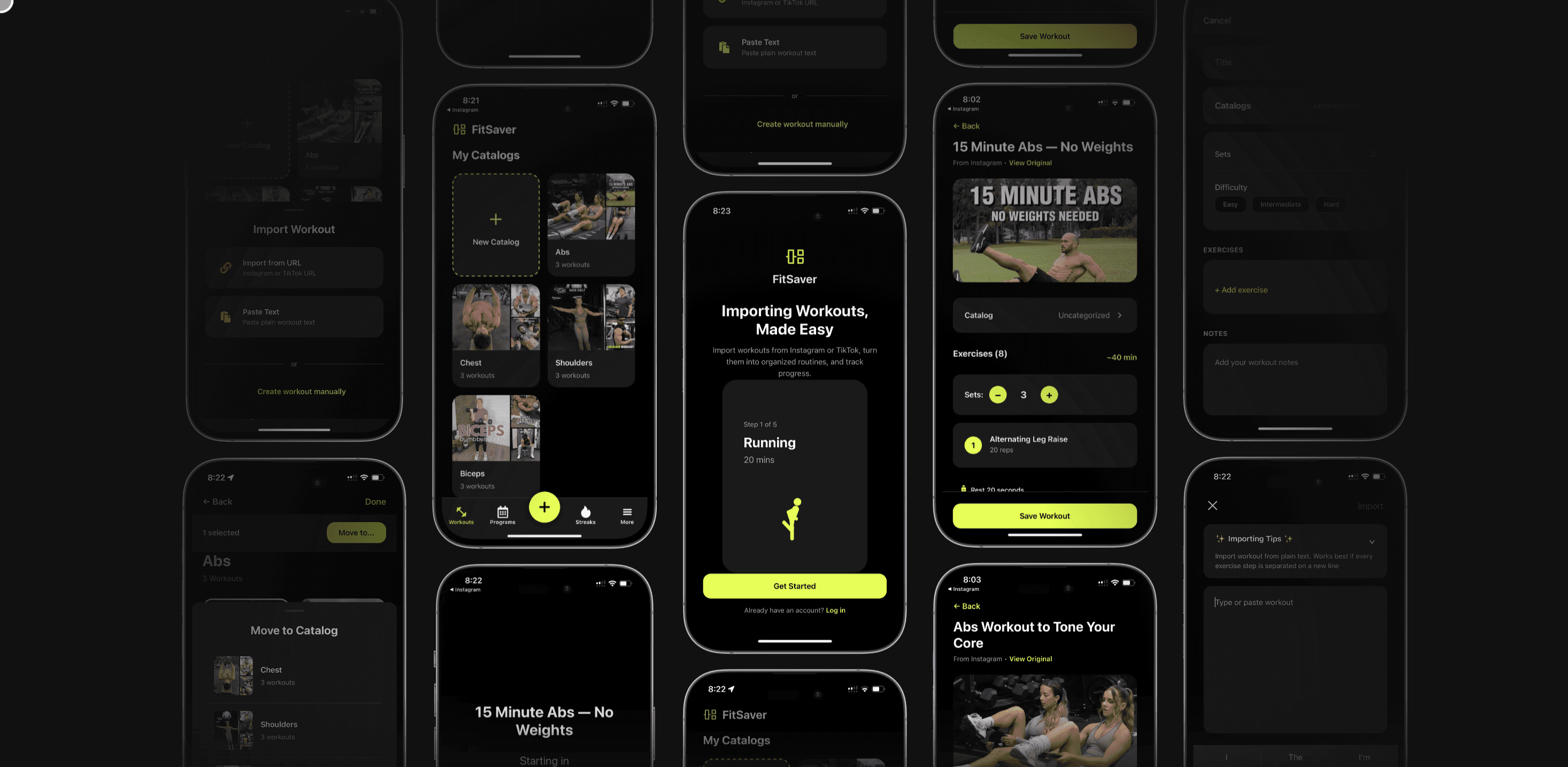
Fitsaver addresses the pain point that starts this whole article: saved videos that don’t translate into a real workout. The app helps users take the clips they discover on Instagram and TikTok and automatically convert them into structured routines. Instead of just bookmarking a Reel and hoping to remember the order or rep schemes later, users can import links or saved clips into Fitsaver and get:
Time-boxed routines and circuit structure.
Set and rep suggestions or timer conversions for conditioned workouts.
Progress tracking so users can note weights, reps, and improvement over sessions.
Distraction-free training mode so a saved Reel doesn’t turn into a 30-minute social scroll.
For the primary audience—tech-savvy fitness enthusiasts aged 18–35—Fitsaver streamlines the discovery-to-action pipeline. It’s especially helpful for those who collect workouts across platforms but struggle to assemble and track them consistently in the gym or at home.
Best Practices Recap
Prefer platform saves for quick bookmarking, but download or screen-record for offline access when the creator permits.
Keep a consistent file naming convention and folder structure for easy searching.
Tag videos with equipment, duration, intensity, and muscle group.
Use apps to convert saved videos into structured routines—this removes the guesswork and helps users stay focused.
Back up videos to cloud or external storage and respect creators’ intellectual property.
Turn saved clips into a practical plan: timebox the session, add sets/reps, and track progress.
Conclusion
Saving workout videos can go from digital chaos to a curated, actionable fitness library with a few smart habits. Whether users rely on built-in saves, screen recording, or trusted downloader tools, organization and structure are what turn saved clips into progress. For busy individuals who want to spend less time deciding and more time training, converting those saved social videos into routines—especially with tools that automate structure and tracking—makes consistency far more achievable.
Apps like Fitsaver bridge the gap between discovery and training by transforming Instagram and TikTok clips into time-efficient, distraction-free workouts. With a sensible saving workflow, clear organization, and ethical use of creators’ content, saved videos stop being ideas and start becoming results.
Frequently Asked Questions
Is it legal to save workout videos from Instagram or TikTok?
Saving videos for personal use is generally tolerated, but users should check the platform’s terms and the creator’s settings. Republishing or monetizing someone else’s content without permission can violate copyright. When sharing, it's best to credit the creator and obtain permission if the content will be reposted outside personal use.
What's the best way to save workout videos for offline use?
When a download is allowed, use the platform’s download option. If not, screen recording at the highest device resolution is a reliable fallback. After recording, trim and compress files if necessary for storage efficiency.
How can saved videos be turned into a structured workout plan?
Start by defining the session goal and constraints, then pick complementary clips. Assign sets/reps or timers, order the exercises for flow and recovery, and add warm-up/cool-down elements. Apps like Fitsaver can automate much of this process by converting saved social videos into structured routines with timers, sets, and progress tracking.
How should someone organize hundreds of saved workout videos?
Use a clear folder hierarchy (by type, muscle group, duration), consistent file naming that includes date, platform, and keywords, and tags for quick searching. Keep active routines on the device and archive older files to cloud or external drives.
Can coaches use saved videos when creating client programs?
Coaches can use saved videos as teaching aids if they respect copyright and, when needed, secure permission to share. Organizing clips by skill or drill and creating client-specific playlists or routine links helps streamline programming and keeps sessions focused.

A weekend scroll can turn up five TikTok circuits, an Instagram carousel with three perfect supersets, and a saved Reel that looks like it was made just for the gym bag. But those saved videos often become a cluttered mess—hard to find when a quick, focused workout is needed. Learning how to save workout videos properly, organize them, and convert them into usable routines makes it far easier for fitness enthusiasts and busy people to train consistently without distraction.
Why Save Workout Videos?
Saving workout videos is more than digital hoarding. When users collect high-quality tutorials, short circuits, or trainer-led sessions, they build a personal library of exercises and routines that match their goals, equipment, and time constraints. Properly saved and organized videos let users:
Access workouts offline when Wi‑Fi or cellular service isn’t available.
Assemble custom routines from clips found across Instagram and TikTok.
Reduce decision fatigue—pick a plan and train without endlessly scrolling.
Study form repeatedly for complex moves and track progression.
Share routines or collaborate with workout buddies and coaches.
Where Workout Videos Come From
Most users discover short, effective workouts on social platforms like Instagram and TikTok. Both platforms allow “saving” inside the app (bookmarks or collections), but saved posts often remain tied to the platform interface—hard to repurpose for an actual session. For offline use, or to build structured workouts, users need reliable ways to save and export videos while respecting creators’ rights.
Platform-Specific Notes
Instagram: Users can bookmark Reels and feed videos into Collections. That’s convenient for rediscovery, but Collections don’t create downloadable copies for offline playback.
TikTok: Many creators allow downloads from the share menu; others block it. TikTok’s “Favorites” system stores posts inside the app.
Other Sources: YouTube, fitness blogs, and paid programs may have different rules and quality standards—always check permissions.
How to Save Workout Videos Safely and Effectively
There are several ways to save workout videos depending on whether users want a quick offline clip, a high-quality file, or an importable resource for an app like Fitsaver. This section outlines practical options and step-by-step guidance.
1. Use the Platform’s Built-In Save or Favorite Feature
This is the quickest step for short-term organization:
On Instagram, tap the bookmark icon to add a post to a Collection. Create Collections like HIIT, Strength, or Mobility to group similar workouts.
On TikTok, tap the heart or tap the share → Favorite/Save to Collections.
Pros: fast, supported by the platform, keeps link to the original creator. Cons: videos stay inside the app, can be removed by the creator, and aren’t available offline if the app limits downloads.
2. Download Directly (When Allowed)
Some creators allow direct downloads from TikTok or Instagram. If the download option appears, users can save a copy straight to their device’s gallery. Steps are simple:
Find the post.
Tap the share button (paper airplane on Instagram; arrow on TikTok).
Tap Save Video or Download if available.
Pros: preserves the original quality when the platform supports it. Cons: not always available and depends on the creator’s settings plus platform terms.
3. Screen Recording (Reliable and Easy)
On both iOS and Android, screen recording is the most universal method for saving visually rich content. It’s especially handy for Reels and short form videos that lack a native download option.
How to Screen Record Well
Enable airplane mode to avoid sudden popups or ads, then play the video in full-screen.
Set the phone to Do Not Disturb to prevent notifications from interrupting recording.
Record at the highest resolution available—on iPhones this is usually defaulted to device resolution; on Android check display settings.
Trim the recording afterward to remove extra start/stop time and crop out UI overlays if needed.
Pros: works for any content visible on screen; fast. Cons: potential quality loss, possible watermarks, and screen recordings capture UI elements unless edited out.
4. Use Browser or App Downloaders (Caution Advised)
There are third-party services and browser extensions that download videos from Instagram or TikTok. While some are high-quality, users should exercise caution:
Only use reputable tools—check reviews and privacy policies.
Avoid apps that request unnecessary permissions or embed watermarks and ads.
Respect creator rights—don’t repost or monetize without permission.
Example workflow for desktop:
Open the video in a browser and copy the URL.
Paste the URL into a trusted downloader (web-based or extension).
Choose the desired resolution and download the MP4 file.
5. Exporting or Archiving from Fitness Platforms
Some trainers host videos on private platforms and allow downloads for paid members. For those, follow the website’s export function and keep copies in your organized archive.
Organizing Saved Workout Videos Like a Pro
Saving is only half the battle. Without sensible organization, saved workout videos remain inaccessible clutter. A few simple systems transform a pile of clips into a usable, motivating library.
Folder Structure and Naming Conventions
On device or cloud drives, adopt a clear folder hierarchy and consistent file names. Example structure:
Workouts/
By Type/
HIIT/
Strength/
Mobility/
By Muscle Group/
Legs/
UpperBody/
By Duration/
10min/
20min/
File naming example:
2026-03-12_TikTok_HIIT_EmilyJones_12min.mp4
This format keeps files sorted by date and contains searchable keywords like platform, type, instructor, and duration.
Use Tags, Descriptions, and Metadata
Most modern file managers and cloud services let users add tags or descriptions. Tagging by intensity, equipment, and focus helps later search—for example: #bodyweight #15min #glutes. If using a dedicated app like Fitsaver, tags and metadata often import automatically from links or can be added manually when building a routine.
Playlists, Collections, and Routine Templates
Group videos into playlists for quick access—like “Quick AM 20” or “Gym Strength 45.” Create templates for common goals, for instance:
Warm-up (5–8 min)
Main strength circuit (30–35 min)
Cool-down and mobility (5–10 min)
Apps that convert saved videos into structured routines make this step faster. Fitsaver, for example, takes Instagram and TikTok clips and helps users assemble them into time-boxed sequences with sets, reps, and rest intervals, so users get rid of the thinking-on-the-fly part and train more efficiently.
From Saved Clips to Structured Workouts
Turning saved workout videos into an actionable routine is where saved content becomes useful. This section outlines the mindset and steps to transform clips into a plan that fits the user's schedule and goals.
Step 1: Define the Goal and Constraints
Decide the goal for the session—strength, conditioning, mobility, skill practice—and set constraints like total time, equipment available, and desired intensity. Busy people often have 20–30 minutes, so they’ll choose a saved circuit that fits those limits.
Step 2: Pick Complementary Clips
Match videos so they flow together: a movement prep video before complex lifts, supersets that don’t target the same muscle group consecutively, or short conditioning circuits followed by a mobility cooldown. Aim for balance—don’t mix two maximal lower-body sessions back-to-back unless recovery is available.
Step 3: Add Structure—Sets, Reps, and Rest
Short social clips often show exercise form but not the full context. Assign sets, reps, or timers to each clip. Example:
Exercise Clip A (Goblet Squat): 4 sets x 6–8 reps, 90s rest
Exercise Clip B (Single-Leg RDL): 3 sets x 8–10 reps, 60s rest
Finisher (Tabata Core): 8 rounds x 20s on / 10s off
Apps that import saved videos can automate this. Fitsaver, for instance, extracts exercises from Instagram and TikTok posts and turns them into timed circuits or rep-based sets so users don’t have to assign these details manually.
Step 4: Build a Weekly Plan
Slot routines into a weekly template to ensure balanced progress—push, pull, legs, and active recovery days. For busy schedules, rotating 3–4 comprehensive sessions can be enough to see progress when paired with consistency.
Storage, Backups, and File Management
Once users accumulate a library, storage and backups prevent accidental loss and make syncing across devices seamless.
Cloud vs Local Storage
Cloud (Google Drive, iCloud, Dropbox): Accessible from any device, easy to share, automatically backed up. Watch storage limits and privacy settings.
Local (phone storage, external SSD): Fast and private, but vulnerable to device failure. External drives are great for high-resolution video libraries.
Recommended hybrid approach: keep frequently used routines on the device and archive older files to cloud or external drives.
File Formats and Quality Considerations
MP4 is the most universally compatible and space-efficient format.
Save at the highest available resolution if future-proofing is important, but compress long archives to save space.
For screen recordings, users might want to transcode files to a smaller bitrate for mobile playback.
Privacy, Copyright, and Ethics
Saving workout videos comes with ethical responsibilities. Creators own their content; respecting their rights preserves the creator ecosystem and avoids legal trouble.
Guidelines to Follow
Use saved videos for personal practice and reference unless explicit permission is granted for redistribution.
Credit the creator when sharing the workout plan with friends, a coach, or on social media.
Avoid reposting saved videos as original content without permission or licensing.
If a creator has disabled downloads or watermarked their videos, respect those choices.
When in doubt, ask. Many creators are happy to allow republishing if correctly credited or linked back to their page, and some even offer downloadable resources for paid members.
Train Smarter: Practical Tips for Using Saved Workout Videos
Saved videos are only useful if they integrate into a training habit. Here are practical tips that transform saved clips into consistent workouts.
1. Timebox Workouts
Aim for a planned duration—20, 30, or 45 minutes. Timeboxing reduces decision fatigue and improves adherence. If a saved workout is longer than the available time, use it as a modular sequence and pick the first two or three sections.
2. Create a Short Pre-Session Checklist
Equipment ready (bands, dumbbells, mat).
Phone on Do Not Disturb and in a stable place to view the clip.
Hydration ready and quick warm-up queued.
3. Use the Pause Between Sets for Quick Notes
After a set, users can add short notes: weight used, perceived exertion, or form cues. This creates a feedback loop that helps progress tracking. If using an app that imports videos, entries often sync with the routine so users can track metrics over time.
4. Mix Trainer Content with Personal Programming
Saved clips are great for technique and short circuits, but users should combine them with progressive overload principles—tracking weight, rep ranges, and deliberate progression week-to-week.
Example Workflows for Different Users
Here are three realistic workflows that show how saved workout videos become actionable routines for various lifestyles.
1. The Time-Crunched Student
Saved clips: 10–20 minute HIIT sessions and bodyweight strength moves.
Workflow: Save 4–5 favorite 15-minute sessions into a “Quick” Collection. Fit one into a 20-minute after-class slot, pairing the video with a 3-minute warm-up and a 2-minute cooldown.
Tools: Phone screen recordings and a cloud folder for backup.
2. The Gym Regular Who Loves Social Content
Saved clips: Progression tutorials, compound movement cues, and advanced accessory work.
Workflow: Import clips into a routine builder (like Fitsaver), create a weekly split that mixes creator circuits with progressive sets, and record weights/reps after each set.
Tools: Apps that convert links into routines and a small notebook or app log for loads.
3. The Coach Curating Client Plans
Saved clips: Short technique demos and mobility drills from multiple creators.
Workflow: Organize videos by skill and share a folder or routine link with clients. Use saved clips as references during sessions and provide modified versions for different clients.
Tools: Shared cloud folders and permission-based links; seek creator permissions when republishing externally.
Troubleshooting Common Problems
Video Won’t Download
Check whether the creator allowed downloads—if not, screen record instead or save the link in-app for reference.
Try a different downloader or use the desktop browser method.
Poor Video Quality After Saving
Record in full-screen and at the highest device resolution.
Use desktop downloaders that allow choosing higher resolutions if possible.
Compress intelligently—avoid multiple compressions to prevent artifacts.
File Too Large
Trim the start and end, lower the bitrate, or convert the file to H.264/MP4 for better compression without massive quality loss.
Archive older videos to cloud storage or external drives.
Useful Tools and Apps
Beyond Instagram and TikTok, several tools make saving, organizing, and using workout videos easier:
Screen Recorders: Native iOS/Android screen recorders or OBS Studio for desktop.
Cloud Drives: Google Drive, Dropbox, iCloud for syncing and backup.
Video Editors: InShot, CapCut, or iMovie for trimming and cropping clips.
Routine Builders: Apps that take saved links and create structured sessions—Fitsaver specializes in converting Instagram and TikTok workout videos into training routines, complete with sets, reps, rest timers, and progress tracking.
File Managers: Files by Google, Apple Files, or third-party file managers for advanced tagging and metadata.
How Fitsaver Fits Into This Workflow
Fitsaver addresses the pain point that starts this whole article: saved videos that don’t translate into a real workout. The app helps users take the clips they discover on Instagram and TikTok and automatically convert them into structured routines. Instead of just bookmarking a Reel and hoping to remember the order or rep schemes later, users can import links or saved clips into Fitsaver and get:
Time-boxed routines and circuit structure.
Set and rep suggestions or timer conversions for conditioned workouts.
Progress tracking so users can note weights, reps, and improvement over sessions.
Distraction-free training mode so a saved Reel doesn’t turn into a 30-minute social scroll.
For the primary audience—tech-savvy fitness enthusiasts aged 18–35—Fitsaver streamlines the discovery-to-action pipeline. It’s especially helpful for those who collect workouts across platforms but struggle to assemble and track them consistently in the gym or at home.
Best Practices Recap
Prefer platform saves for quick bookmarking, but download or screen-record for offline access when the creator permits.
Keep a consistent file naming convention and folder structure for easy searching.
Tag videos with equipment, duration, intensity, and muscle group.
Use apps to convert saved videos into structured routines—this removes the guesswork and helps users stay focused.
Back up videos to cloud or external storage and respect creators’ intellectual property.
Turn saved clips into a practical plan: timebox the session, add sets/reps, and track progress.
Conclusion
Saving workout videos can go from digital chaos to a curated, actionable fitness library with a few smart habits. Whether users rely on built-in saves, screen recording, or trusted downloader tools, organization and structure are what turn saved clips into progress. For busy individuals who want to spend less time deciding and more time training, converting those saved social videos into routines—especially with tools that automate structure and tracking—makes consistency far more achievable.
Apps like Fitsaver bridge the gap between discovery and training by transforming Instagram and TikTok clips into time-efficient, distraction-free workouts. With a sensible saving workflow, clear organization, and ethical use of creators’ content, saved videos stop being ideas and start becoming results.
Frequently Asked Questions
Is it legal to save workout videos from Instagram or TikTok?
Saving videos for personal use is generally tolerated, but users should check the platform’s terms and the creator’s settings. Republishing or monetizing someone else’s content without permission can violate copyright. When sharing, it's best to credit the creator and obtain permission if the content will be reposted outside personal use.
What's the best way to save workout videos for offline use?
When a download is allowed, use the platform’s download option. If not, screen recording at the highest device resolution is a reliable fallback. After recording, trim and compress files if necessary for storage efficiency.
How can saved videos be turned into a structured workout plan?
Start by defining the session goal and constraints, then pick complementary clips. Assign sets/reps or timers, order the exercises for flow and recovery, and add warm-up/cool-down elements. Apps like Fitsaver can automate much of this process by converting saved social videos into structured routines with timers, sets, and progress tracking.
How should someone organize hundreds of saved workout videos?
Use a clear folder hierarchy (by type, muscle group, duration), consistent file naming that includes date, platform, and keywords, and tags for quick searching. Keep active routines on the device and archive older files to cloud or external drives.
Can coaches use saved videos when creating client programs?
Coaches can use saved videos as teaching aids if they respect copyright and, when needed, secure permission to share. Organizing clips by skill or drill and creating client-specific playlists or routine links helps streamline programming and keeps sessions focused.
A weekend scroll can turn up five TikTok circuits, an Instagram carousel with three perfect supersets, and a saved Reel that looks like it was made just for the gym bag. But those saved videos often become a cluttered mess—hard to find when a quick, focused workout is needed. Learning how to save workout videos properly, organize them, and convert them into usable routines makes it far easier for fitness enthusiasts and busy people to train consistently without distraction.
Why Save Workout Videos?
Saving workout videos is more than digital hoarding. When users collect high-quality tutorials, short circuits, or trainer-led sessions, they build a personal library of exercises and routines that match their goals, equipment, and time constraints. Properly saved and organized videos let users:
Access workouts offline when Wi‑Fi or cellular service isn’t available.
Assemble custom routines from clips found across Instagram and TikTok.
Reduce decision fatigue—pick a plan and train without endlessly scrolling.
Study form repeatedly for complex moves and track progression.
Share routines or collaborate with workout buddies and coaches.
Where Workout Videos Come From
Most users discover short, effective workouts on social platforms like Instagram and TikTok. Both platforms allow “saving” inside the app (bookmarks or collections), but saved posts often remain tied to the platform interface—hard to repurpose for an actual session. For offline use, or to build structured workouts, users need reliable ways to save and export videos while respecting creators’ rights.
Platform-Specific Notes
Instagram: Users can bookmark Reels and feed videos into Collections. That’s convenient for rediscovery, but Collections don’t create downloadable copies for offline playback.
TikTok: Many creators allow downloads from the share menu; others block it. TikTok’s “Favorites” system stores posts inside the app.
Other Sources: YouTube, fitness blogs, and paid programs may have different rules and quality standards—always check permissions.
How to Save Workout Videos Safely and Effectively
There are several ways to save workout videos depending on whether users want a quick offline clip, a high-quality file, or an importable resource for an app like Fitsaver. This section outlines practical options and step-by-step guidance.
1. Use the Platform’s Built-In Save or Favorite Feature
This is the quickest step for short-term organization:
On Instagram, tap the bookmark icon to add a post to a Collection. Create Collections like HIIT, Strength, or Mobility to group similar workouts.
On TikTok, tap the heart or tap the share → Favorite/Save to Collections.
Pros: fast, supported by the platform, keeps link to the original creator. Cons: videos stay inside the app, can be removed by the creator, and aren’t available offline if the app limits downloads.
2. Download Directly (When Allowed)
Some creators allow direct downloads from TikTok or Instagram. If the download option appears, users can save a copy straight to their device’s gallery. Steps are simple:
Find the post.
Tap the share button (paper airplane on Instagram; arrow on TikTok).
Tap Save Video or Download if available.
Pros: preserves the original quality when the platform supports it. Cons: not always available and depends on the creator’s settings plus platform terms.
3. Screen Recording (Reliable and Easy)
On both iOS and Android, screen recording is the most universal method for saving visually rich content. It’s especially handy for Reels and short form videos that lack a native download option.
How to Screen Record Well
Enable airplane mode to avoid sudden popups or ads, then play the video in full-screen.
Set the phone to Do Not Disturb to prevent notifications from interrupting recording.
Record at the highest resolution available—on iPhones this is usually defaulted to device resolution; on Android check display settings.
Trim the recording afterward to remove extra start/stop time and crop out UI overlays if needed.
Pros: works for any content visible on screen; fast. Cons: potential quality loss, possible watermarks, and screen recordings capture UI elements unless edited out.
4. Use Browser or App Downloaders (Caution Advised)
There are third-party services and browser extensions that download videos from Instagram or TikTok. While some are high-quality, users should exercise caution:
Only use reputable tools—check reviews and privacy policies.
Avoid apps that request unnecessary permissions or embed watermarks and ads.
Respect creator rights—don’t repost or monetize without permission.
Example workflow for desktop:
Open the video in a browser and copy the URL.
Paste the URL into a trusted downloader (web-based or extension).
Choose the desired resolution and download the MP4 file.
5. Exporting or Archiving from Fitness Platforms
Some trainers host videos on private platforms and allow downloads for paid members. For those, follow the website’s export function and keep copies in your organized archive.
Organizing Saved Workout Videos Like a Pro
Saving is only half the battle. Without sensible organization, saved workout videos remain inaccessible clutter. A few simple systems transform a pile of clips into a usable, motivating library.
Folder Structure and Naming Conventions
On device or cloud drives, adopt a clear folder hierarchy and consistent file names. Example structure:
Workouts/
By Type/
HIIT/
Strength/
Mobility/
By Muscle Group/
Legs/
UpperBody/
By Duration/
10min/
20min/
File naming example:
2026-03-12_TikTok_HIIT_EmilyJones_12min.mp4
This format keeps files sorted by date and contains searchable keywords like platform, type, instructor, and duration.
Use Tags, Descriptions, and Metadata
Most modern file managers and cloud services let users add tags or descriptions. Tagging by intensity, equipment, and focus helps later search—for example: #bodyweight #15min #glutes. If using a dedicated app like Fitsaver, tags and metadata often import automatically from links or can be added manually when building a routine.
Playlists, Collections, and Routine Templates
Group videos into playlists for quick access—like “Quick AM 20” or “Gym Strength 45.” Create templates for common goals, for instance:
Warm-up (5–8 min)
Main strength circuit (30–35 min)
Cool-down and mobility (5–10 min)
Apps that convert saved videos into structured routines make this step faster. Fitsaver, for example, takes Instagram and TikTok clips and helps users assemble them into time-boxed sequences with sets, reps, and rest intervals, so users get rid of the thinking-on-the-fly part and train more efficiently.
From Saved Clips to Structured Workouts
Turning saved workout videos into an actionable routine is where saved content becomes useful. This section outlines the mindset and steps to transform clips into a plan that fits the user's schedule and goals.
Step 1: Define the Goal and Constraints
Decide the goal for the session—strength, conditioning, mobility, skill practice—and set constraints like total time, equipment available, and desired intensity. Busy people often have 20–30 minutes, so they’ll choose a saved circuit that fits those limits.
Step 2: Pick Complementary Clips
Match videos so they flow together: a movement prep video before complex lifts, supersets that don’t target the same muscle group consecutively, or short conditioning circuits followed by a mobility cooldown. Aim for balance—don’t mix two maximal lower-body sessions back-to-back unless recovery is available.
Step 3: Add Structure—Sets, Reps, and Rest
Short social clips often show exercise form but not the full context. Assign sets, reps, or timers to each clip. Example:
Exercise Clip A (Goblet Squat): 4 sets x 6–8 reps, 90s rest
Exercise Clip B (Single-Leg RDL): 3 sets x 8–10 reps, 60s rest
Finisher (Tabata Core): 8 rounds x 20s on / 10s off
Apps that import saved videos can automate this. Fitsaver, for instance, extracts exercises from Instagram and TikTok posts and turns them into timed circuits or rep-based sets so users don’t have to assign these details manually.
Step 4: Build a Weekly Plan
Slot routines into a weekly template to ensure balanced progress—push, pull, legs, and active recovery days. For busy schedules, rotating 3–4 comprehensive sessions can be enough to see progress when paired with consistency.
Storage, Backups, and File Management
Once users accumulate a library, storage and backups prevent accidental loss and make syncing across devices seamless.
Cloud vs Local Storage
Cloud (Google Drive, iCloud, Dropbox): Accessible from any device, easy to share, automatically backed up. Watch storage limits and privacy settings.
Local (phone storage, external SSD): Fast and private, but vulnerable to device failure. External drives are great for high-resolution video libraries.
Recommended hybrid approach: keep frequently used routines on the device and archive older files to cloud or external drives.
File Formats and Quality Considerations
MP4 is the most universally compatible and space-efficient format.
Save at the highest available resolution if future-proofing is important, but compress long archives to save space.
For screen recordings, users might want to transcode files to a smaller bitrate for mobile playback.
Privacy, Copyright, and Ethics
Saving workout videos comes with ethical responsibilities. Creators own their content; respecting their rights preserves the creator ecosystem and avoids legal trouble.
Guidelines to Follow
Use saved videos for personal practice and reference unless explicit permission is granted for redistribution.
Credit the creator when sharing the workout plan with friends, a coach, or on social media.
Avoid reposting saved videos as original content without permission or licensing.
If a creator has disabled downloads or watermarked their videos, respect those choices.
When in doubt, ask. Many creators are happy to allow republishing if correctly credited or linked back to their page, and some even offer downloadable resources for paid members.
Train Smarter: Practical Tips for Using Saved Workout Videos
Saved videos are only useful if they integrate into a training habit. Here are practical tips that transform saved clips into consistent workouts.
1. Timebox Workouts
Aim for a planned duration—20, 30, or 45 minutes. Timeboxing reduces decision fatigue and improves adherence. If a saved workout is longer than the available time, use it as a modular sequence and pick the first two or three sections.
2. Create a Short Pre-Session Checklist
Equipment ready (bands, dumbbells, mat).
Phone on Do Not Disturb and in a stable place to view the clip.
Hydration ready and quick warm-up queued.
3. Use the Pause Between Sets for Quick Notes
After a set, users can add short notes: weight used, perceived exertion, or form cues. This creates a feedback loop that helps progress tracking. If using an app that imports videos, entries often sync with the routine so users can track metrics over time.
4. Mix Trainer Content with Personal Programming
Saved clips are great for technique and short circuits, but users should combine them with progressive overload principles—tracking weight, rep ranges, and deliberate progression week-to-week.
Example Workflows for Different Users
Here are three realistic workflows that show how saved workout videos become actionable routines for various lifestyles.
1. The Time-Crunched Student
Saved clips: 10–20 minute HIIT sessions and bodyweight strength moves.
Workflow: Save 4–5 favorite 15-minute sessions into a “Quick” Collection. Fit one into a 20-minute after-class slot, pairing the video with a 3-minute warm-up and a 2-minute cooldown.
Tools: Phone screen recordings and a cloud folder for backup.
2. The Gym Regular Who Loves Social Content
Saved clips: Progression tutorials, compound movement cues, and advanced accessory work.
Workflow: Import clips into a routine builder (like Fitsaver), create a weekly split that mixes creator circuits with progressive sets, and record weights/reps after each set.
Tools: Apps that convert links into routines and a small notebook or app log for loads.
3. The Coach Curating Client Plans
Saved clips: Short technique demos and mobility drills from multiple creators.
Workflow: Organize videos by skill and share a folder or routine link with clients. Use saved clips as references during sessions and provide modified versions for different clients.
Tools: Shared cloud folders and permission-based links; seek creator permissions when republishing externally.
Troubleshooting Common Problems
Video Won’t Download
Check whether the creator allowed downloads—if not, screen record instead or save the link in-app for reference.
Try a different downloader or use the desktop browser method.
Poor Video Quality After Saving
Record in full-screen and at the highest device resolution.
Use desktop downloaders that allow choosing higher resolutions if possible.
Compress intelligently—avoid multiple compressions to prevent artifacts.
File Too Large
Trim the start and end, lower the bitrate, or convert the file to H.264/MP4 for better compression without massive quality loss.
Archive older videos to cloud storage or external drives.
Useful Tools and Apps
Beyond Instagram and TikTok, several tools make saving, organizing, and using workout videos easier:
Screen Recorders: Native iOS/Android screen recorders or OBS Studio for desktop.
Cloud Drives: Google Drive, Dropbox, iCloud for syncing and backup.
Video Editors: InShot, CapCut, or iMovie for trimming and cropping clips.
Routine Builders: Apps that take saved links and create structured sessions—Fitsaver specializes in converting Instagram and TikTok workout videos into training routines, complete with sets, reps, rest timers, and progress tracking.
File Managers: Files by Google, Apple Files, or third-party file managers for advanced tagging and metadata.
How Fitsaver Fits Into This Workflow
Fitsaver addresses the pain point that starts this whole article: saved videos that don’t translate into a real workout. The app helps users take the clips they discover on Instagram and TikTok and automatically convert them into structured routines. Instead of just bookmarking a Reel and hoping to remember the order or rep schemes later, users can import links or saved clips into Fitsaver and get:
Time-boxed routines and circuit structure.
Set and rep suggestions or timer conversions for conditioned workouts.
Progress tracking so users can note weights, reps, and improvement over sessions.
Distraction-free training mode so a saved Reel doesn’t turn into a 30-minute social scroll.
For the primary audience—tech-savvy fitness enthusiasts aged 18–35—Fitsaver streamlines the discovery-to-action pipeline. It’s especially helpful for those who collect workouts across platforms but struggle to assemble and track them consistently in the gym or at home.
Best Practices Recap
Prefer platform saves for quick bookmarking, but download or screen-record for offline access when the creator permits.
Keep a consistent file naming convention and folder structure for easy searching.
Tag videos with equipment, duration, intensity, and muscle group.
Use apps to convert saved videos into structured routines—this removes the guesswork and helps users stay focused.
Back up videos to cloud or external storage and respect creators’ intellectual property.
Turn saved clips into a practical plan: timebox the session, add sets/reps, and track progress.
Conclusion
Saving workout videos can go from digital chaos to a curated, actionable fitness library with a few smart habits. Whether users rely on built-in saves, screen recording, or trusted downloader tools, organization and structure are what turn saved clips into progress. For busy individuals who want to spend less time deciding and more time training, converting those saved social videos into routines—especially with tools that automate structure and tracking—makes consistency far more achievable.
Apps like Fitsaver bridge the gap between discovery and training by transforming Instagram and TikTok clips into time-efficient, distraction-free workouts. With a sensible saving workflow, clear organization, and ethical use of creators’ content, saved videos stop being ideas and start becoming results.
Frequently Asked Questions
Is it legal to save workout videos from Instagram or TikTok?
Saving videos for personal use is generally tolerated, but users should check the platform’s terms and the creator’s settings. Republishing or monetizing someone else’s content without permission can violate copyright. When sharing, it's best to credit the creator and obtain permission if the content will be reposted outside personal use.
What's the best way to save workout videos for offline use?
When a download is allowed, use the platform’s download option. If not, screen recording at the highest device resolution is a reliable fallback. After recording, trim and compress files if necessary for storage efficiency.
How can saved videos be turned into a structured workout plan?
Start by defining the session goal and constraints, then pick complementary clips. Assign sets/reps or timers, order the exercises for flow and recovery, and add warm-up/cool-down elements. Apps like Fitsaver can automate much of this process by converting saved social videos into structured routines with timers, sets, and progress tracking.
How should someone organize hundreds of saved workout videos?
Use a clear folder hierarchy (by type, muscle group, duration), consistent file naming that includes date, platform, and keywords, and tags for quick searching. Keep active routines on the device and archive older files to cloud or external drives.
Can coaches use saved videos when creating client programs?
Coaches can use saved videos as teaching aids if they respect copyright and, when needed, secure permission to share. Organizing clips by skill or drill and creating client-specific playlists or routine links helps streamline programming and keeps sessions focused.